Building HubSpot app Home and Settings pages
Building the HubSpot App Home and Settings Page on Gadget
HubSpot's much-awaited and overdue feature: The App Home Page! (And also, a Settings page).
When creating ad hoc HubSpot apps for internal use, one thing never felt right to me was the lack of a centralized overview page for the integration. Having only an app card to view data feels restrictive. If you wanted to shoehorn in a method to have an overview of all data handled by the app with just the app card, you would need to create a clunky solution or compromise the clarity of the app card.
That's why, for this app template, we built up from the previous HubSpot Private app template as it's a great use case for having an app homepage to display all of the teams in an organization, grouped by company.
Where we left off
In the last post, we built a HubSpot app card on Gadget that lets users group contacts from a company into named teams that were then stored as a custom object (customObjectTeam) in Gadget. The app card is scoped to a single company record: you pick contacts, name the team, and save.
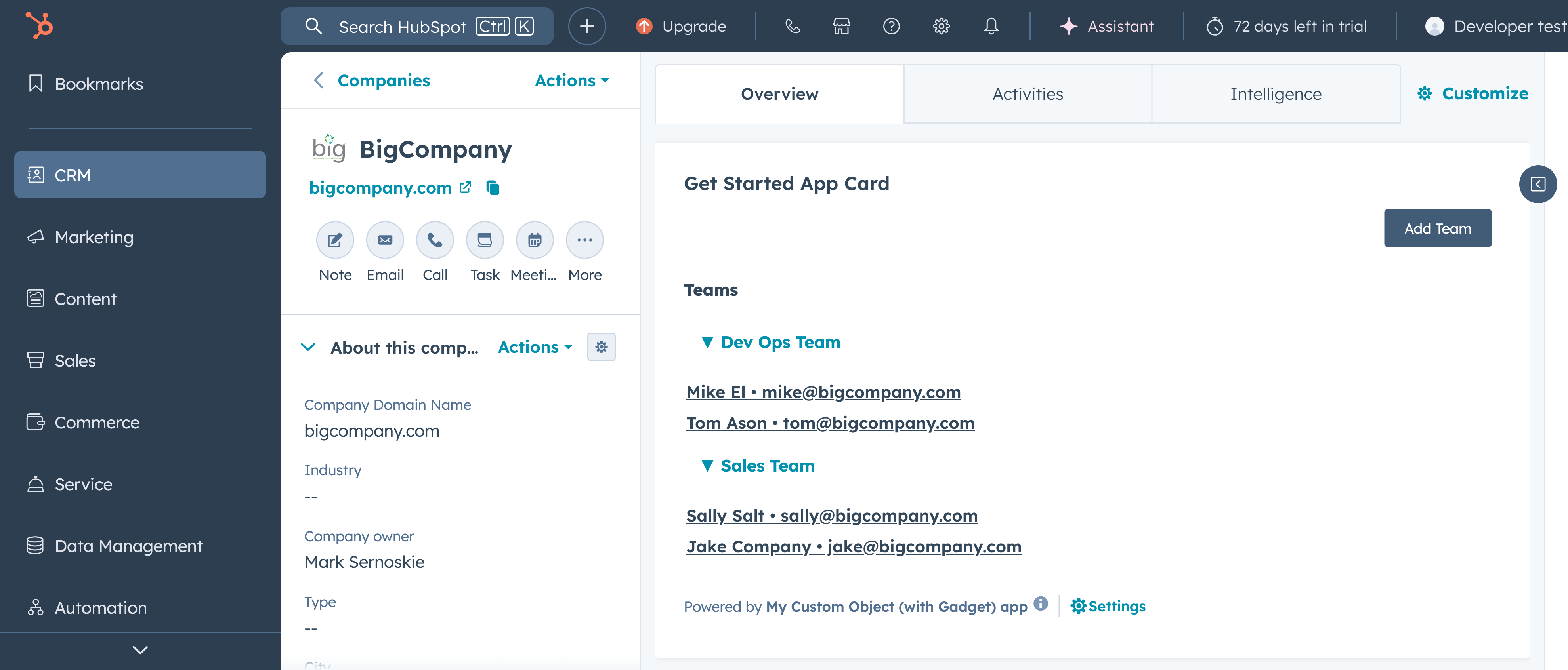
That works well for creation. But it leaves an obvious gap: there's nowhere to get a bird's-eye view of every team across the entire portal, no easy way to clean up stale data, and no easy way to organize any WebUI modification tools inside HubSpot. That's what this post is about.
The App Home Page
HubSpot's App Home Page (currently in public beta, sign up at https://app.hubspot.com/l/product-updates/new-to-you?rollout=237984) gives your app a proper landing page, which you can quickly access from the Marketplace icon under Your recently visited apps, or directly at <inline-code>https://app.hubspot.com/app/{HubID}/{appId}<inline-code>
The app Home Page is built identically to a card extension, a React component using <inline-code>hubspot/ui-extensions<inline-code>, registered with <inline-code>hubspot.extend<"home"><inline-code> and configured via an <inline-code>*-hsmeta.json<inline-code> file with <inline-code>"location": "home"<inline-code>. HubSpot recommends using certain hubspot ui-extension components and props to fit the UI expectations of a Home page, same idea with the Settings page.
What it shows
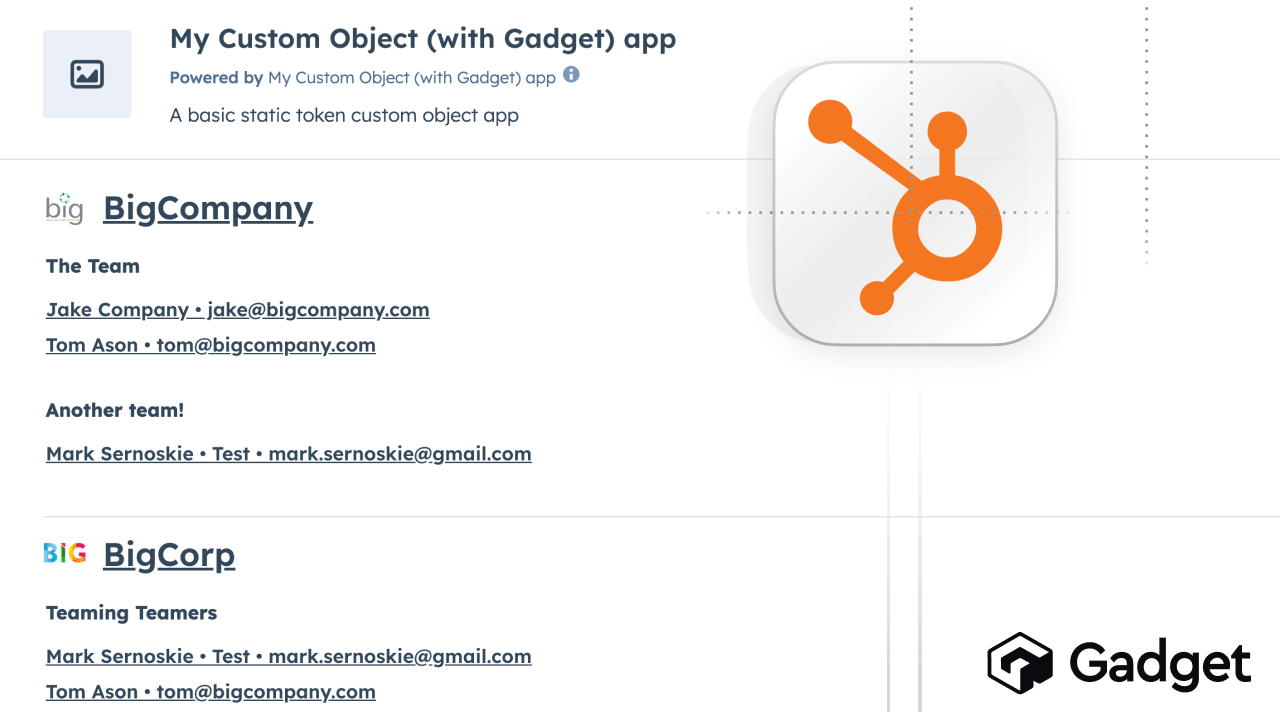
The homepage gives a full organizational view: every company, every team under it, and every contact in each team, all in one scrollable page.

Company logos are pulled from HubSpot and displayed inline. Every company name and contact name is a deep link directly to their HubSpot record so this page doubles as a quick-navigation tool.
The data architecture
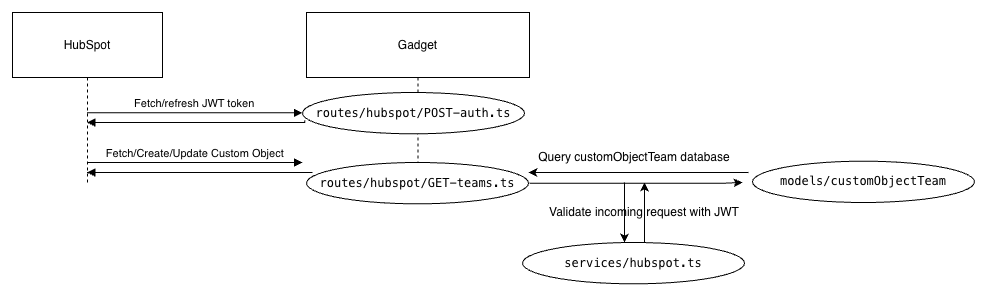
The key design choice here is that Gadget only stores IDs. The <inline-code>customObjectTeam<inline-code> model holds <inline-code>teamName<inline-code>, <inline-code>portalId<inline-code>, a <inline-code>parentCompany<inline-code> number, and <inline-code>teamContacts<inline-code> (a JSON array of HubSpot contact IDs). No personal identifiers, no logo image files.
When the homepage loads, the <inline-code>GET /hubspot/all-teams<inline-code> route:
1. Queries Gadget for all <inline-code>customObjectTeam<inline-code>records belonging to the portal.
2. Collects all unique parentCompany IDs and fires a single batch request to the HubSpot CRM companies API for names and logos.
3. Collects all unique contact IDs across every team and fires a single batch request to the HubSpot CRM contacts API for names, titles, and emails.
4. Assembles and returns a response grouped by company, with ID arrays replaced by fully hydrated objects.
// Fetch all teams for this portal
    const teams = await api.customObjectTeam.findMany({
      filter: { portalId: { equals: portalIdNumber } },
      select: {
        id: true,
        teamName: true,
        teamContacts: true,
        parentCompany: true,
        portalId: true,
      },
    });

    // Get unique company IDs
    const uniqueCompanyIds = [
      ...new Set(
        teams
          .map((t) => t.parentCompany)
          .filter((id): id is number => id != null)
          .map(String)
      ),
    ];

    // Batch-fetch company names and logos from HubSpot
    const companyNames: Record<string, string> = {};
    const companyLogos: Record<string, string> = {};
    if (uniqueCompanyIds.length > 0) {
      try {
        const batchResponse = await hubspotClient.crm.companies.batchApi.read({
          inputs: uniqueCompanyIds.map((id) => ({ id })),
          properties: ["name", "hs_logo_url"],
          propertiesWithHistory: [],
        });
        for (const company of batchResponse.results) {
          companyNames[company.id] =
            company.properties.name || `Company ${company.id}`;
          if (company.properties.hs_logo_url) {
            companyLogos[company.id] = company.properties.hs_logo_url;
          }
        }
      } catch (err) {
        logger.warn({ err }, "Failed to fetch company names from HubSpot; using IDs as fallback");
      }
    }

    // Collect all unique contact IDs across all teams
    const uniqueContactIds = [
      ...new Set(
        teams.flatMap((t) =>
          Array.isArray(t.teamContacts)
            ? (t.teamContacts as (string | number)[]).map(String)
            : []
        )
      ),
    ];
Two API calls to HubSpot, regardless of how many companies or teams exist. This same route is reused by both the Homepage and the Settings page.
Auth
Like the App card, the Homepage authenticates by first calling <inline-code>POST /hubspot/auth<inline-code> to get a short-lived JWT, then passing it as a Bearer token on subsequent requests. The token is validated server-side by <inline-code>requireHubspotJwt<inline-code>, which checks the signature, confirms the session isn't expired, and extracts the portalId to scope all database queries.
The Settings Page
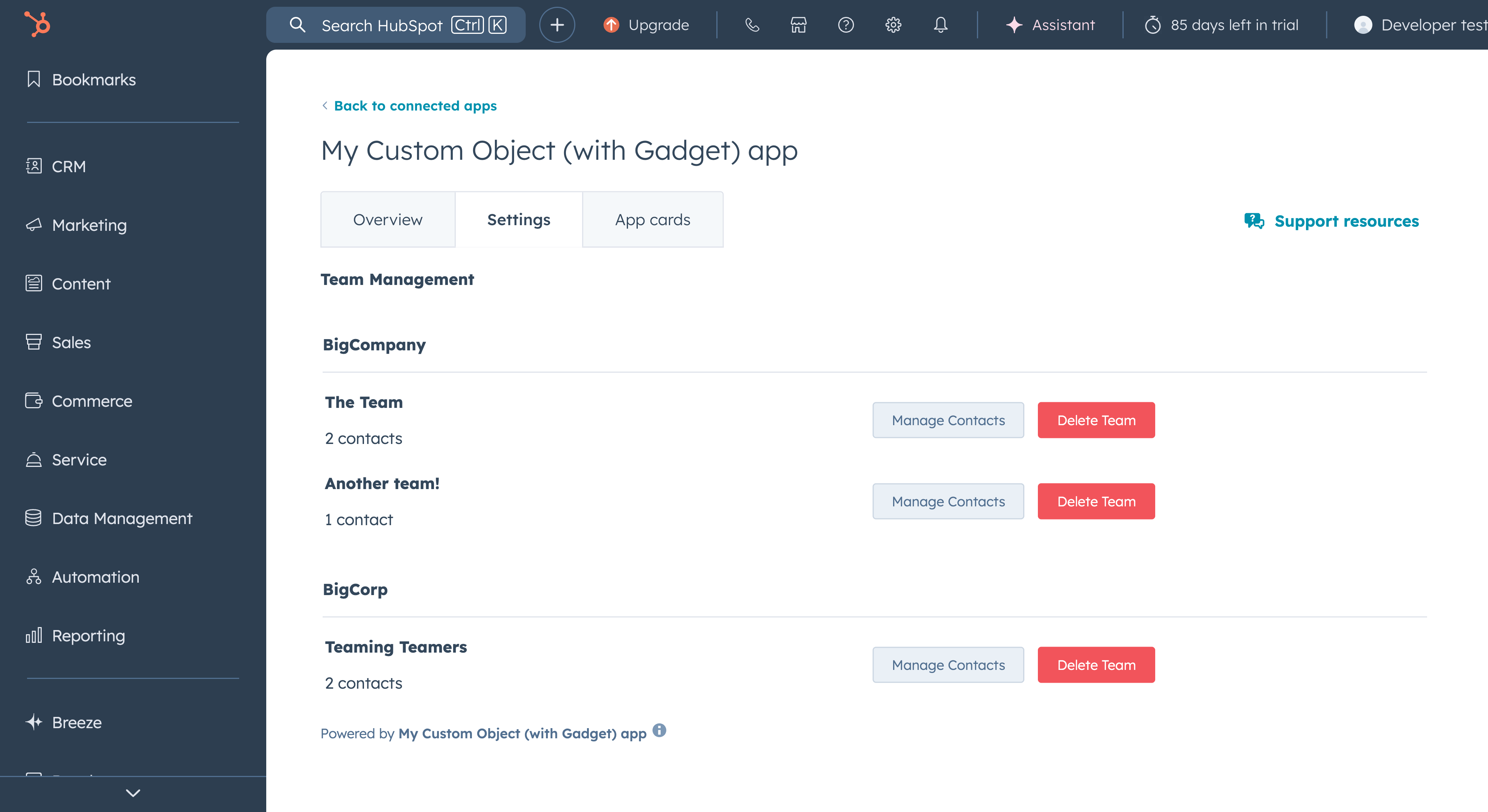
The settings page lives at <inline-code>Marketplace → My Apps → [your app] → Settings<inline-code> and is configured with <inline-code>"type": "settings"<inline-code> in its <inline-code>*-hsmeta.json<inline-code>. It shares the same React + <inline-code>hubspot/ui-extensions<inline-code> toolkit as the homepage and card, with one important constraint: no <inline-code>hubspot/ui-extensions/crm<inline-code> components, since settings isn't tied to any CRM object.
Where the homepage is read-only, the settings page is where you manage your teams. It loads the same <inline-code>GET /hubspot/all-teams<inline-code> data, but adds two actions per team:
Removing contacts
Clicking Manage Contacts on a team opens a modal panel. Inside is a checkbox list of every contact on that team. Selecting contacts and hitting Remove
Selected calls <inline-code>POST /hubspot/remove-contacts<inline-code>, which:
- Verifies the team belongs to the current portal (no cross-portal writes).
- Filters the teamContacts array to exclude the selected IDs.
- Saves the updated array back to the Gadget record.
The UI updates immediately in state, no reload needed.
Deleting teams
Delete Team uses a two-step confirm pattern: the first click swaps the button for Confirm Delete and Cancel, requiring a second deliberate action before anything is actually deleted. This calls <inline-code>POST /hubspot/delete-team<inline-code>, which performs the same portal ownership check before calling <inline-code>api.customObjectTeam.delete<inline-code>.
Deleted teams disappear from the list immediately. Companies with no remaining teams are removed too.
What this unlocks
Adding the homepage and settings page to the custom objects template completes a proper app loop:
- Create teams from the company app card
- View all teams org-wide on the app homepage
- Manage (remove contacts, delete teams) from the settings page
The separation of concerns is clean: the card is scoped to one company record, the homepage is a read-only portal-wide view, and the settings page is where administrative actions live. None of them needed new models, just new routes and UI extensions on top of the same <inline-code>customObjectTeam<inline-code> model and <inline-code>GET-all-teams<inline-code> endpoint.
The full template is available here!